SuperPDP Setup Guide
SuperPDP is a French Plateforme de Dématérialisation Partenaire (PDP) certified by the French tax authorities. It enables your company to send and receive electronic invoices (e-invoices) in compliance with French e-invoicing regulations (Facture électronique).
Follow the steps below to create your SuperPDP account, verify your identity, register on the directory, and create an API application.
1. Create a SuperPDP account
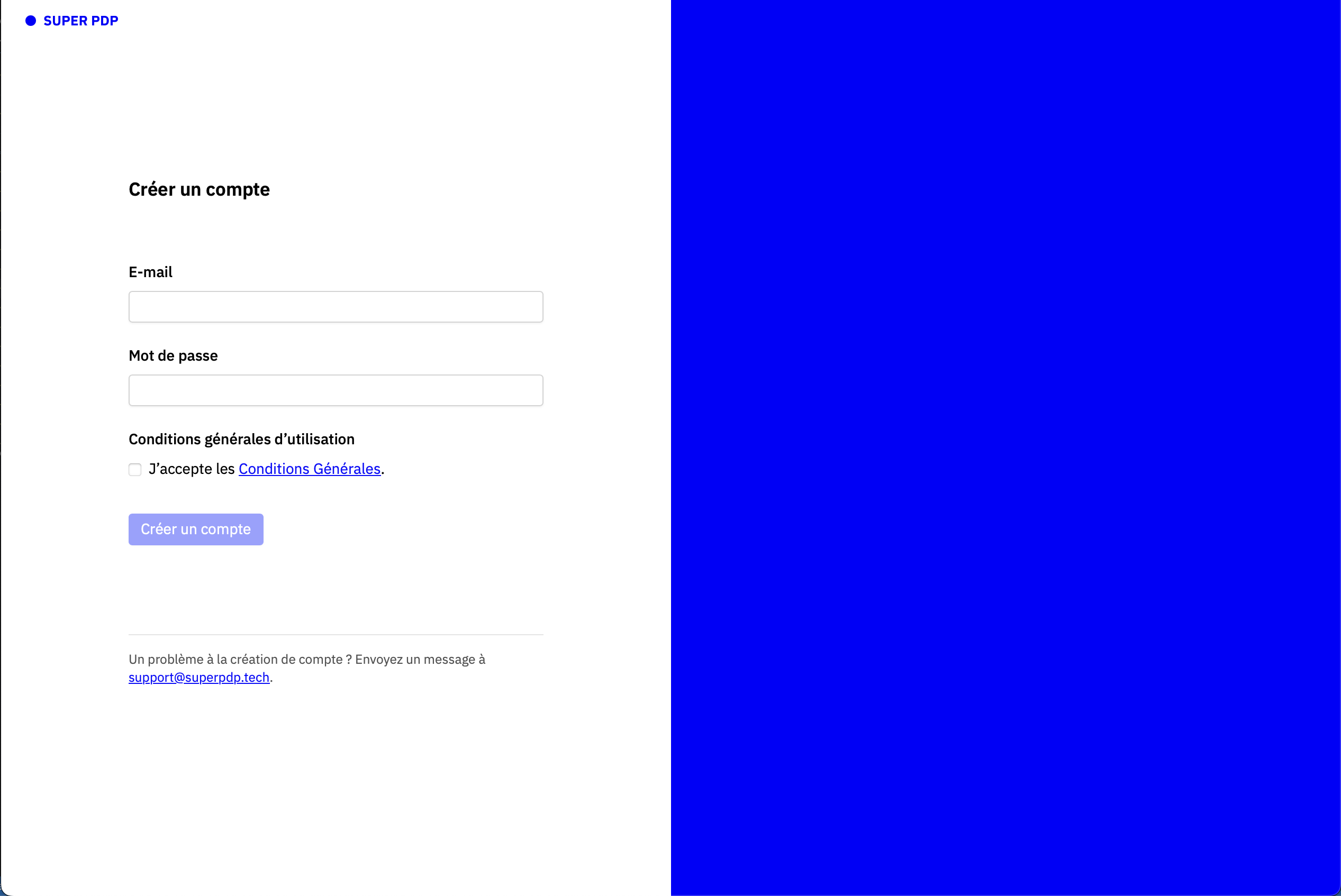
- Go to https://app.superpdp.com.
- Click Sign up.
- Enter your email address and choose a strong password.
- Fill in your company information:
- Legal name
- SIRET number
- VAT number (TVA intracommunautaire)
- Company address
- Accept the terms of service and click Create account.
- Check your email inbox and click the confirmation link to activate your account.
Once confirmed, you can log in to the SuperPDP dashboard.
2. KYB verification with ID
SuperPDP requires a Know Your Business (KYB) verification before you can use the platform.
- Log in to your SuperPDP account.
- Go to Settings → KYB Verification.
- Upload the following documents:
- Proof of identity of the legal representative (passport or national ID card)
- K-bis extract (less than 3 months old)
- Proof of address for the company
- Fill in the beneficial ownership declaration if required.
- Submit the documents for review.
Verification typically takes 24 to 72 hours. You will receive an email once your KYB is approved.
3. Register on the directory to receive invoices
To receive e-invoices from other companies, your company must be registered in the Annuaire Général (central directory).
The Annuaire Général is the French central registry of companies authorised to send and receive electronic invoices. All PDPs are synchronised with it to enable invoice routing.
- From the SuperPDP dashboard, navigate to Directory → Register.
- Your SIRET and company details will be pre-filled.
- Select the electronic invoice address where invoices should be routed (this will be your SuperPDP inbox).
- Configure your invoice reception preferences:
- Chorus Pro integration (for public sector B2G invoices)
- Direct PDP-to-PDP reception
- Confirm and submit the registration.
SuperPDP will handle the synchronization with the French central directory. Once registered, other PDPs and platforms will be able to deliver invoices to your company through SuperPDP.
4. Create an Application to use the API
To connect Invoicerr (or any other tool) to SuperPDP, you need to create an API application.
- In the SuperPDP dashboard, go to Developers → Applications.
- Click Create Application.
- Provide:
- Application name (e.g., "Invoicerr")
- Description (optional)
- Redirect URIs (if using OAuth 2.0)
- Scopes — select at minimum:
invoice:read— read incoming invoicesinvoice:write— send invoicescompany:read— read company info
- Click Create.
After creation, you will receive:
- Client ID
- Client Secret (save this securely — it will not be shown again)
You can now use these credentials to authenticate and call the SuperPDP API from Invoicerr or your own integrations.
5. Configure the PDP channel in Invoicerr
Once your SuperPDP Application exists, open Settings → E-invoicing → Channels in Invoicerr and configure the PDP channel using the credentials you just created.
Fill in the channel form — four fields, that's the whole form:
- API base URL (required) — the API root of your PDP. Default:
https://api.superpdp.tech. - Client ID (required) — the Client ID from the SuperPDP Application you created in the Create an Application step above.
- Client secret (required) — the Client Secret from that same Application. It is stored encrypted at rest.
- Environment (required) — choose Test (sandbox) or Production. Defaults to Test.
There is no "API style" or "PDP routing ID" field on this screen. The channel always talks SuperPDP's own proprietary v1.beta API — an AFNOR-Flow-compatible PDP other than SuperPDP is not selectable from this form today. Your own routing address is not something you set either: the buyer's endpoint is resolved automatically per invoice from the client / directory.
Secrets are encrypted at rest. The server must have CREDENTIALS_ENCRYPTION_KEY configured, otherwise saving the channel fails with a 503 — Encryption key not configured — channel credentials cannot be saved error.
Save the channel. Invoicerr will then use these credentials to send and track your e-invoices through the PDP.